How to Create a Template in the Survey Form
Step 1: Open the Survey app from the sidebar.
Step 2: Select the Survey configuration you want to work on.
Step 3: Click the Form tab then click the Templates tab.
Step 4: Click the Add Template to create a new template.
Step 5: Create a template name.
Step 6: Add your first question:
Choose a question type (Text, Textarea, Date, Choice, Checkbox, Rating, Upload file, Stars, or Face).
Enter the question text.
Click the Add option if needed and click the toggle button if required.
Step 7: Add more questions by clicking Add new question, then select a type of question, and enter the question.
Step 8: Click Update when you are done.
Step 9: A new template has been successfully created.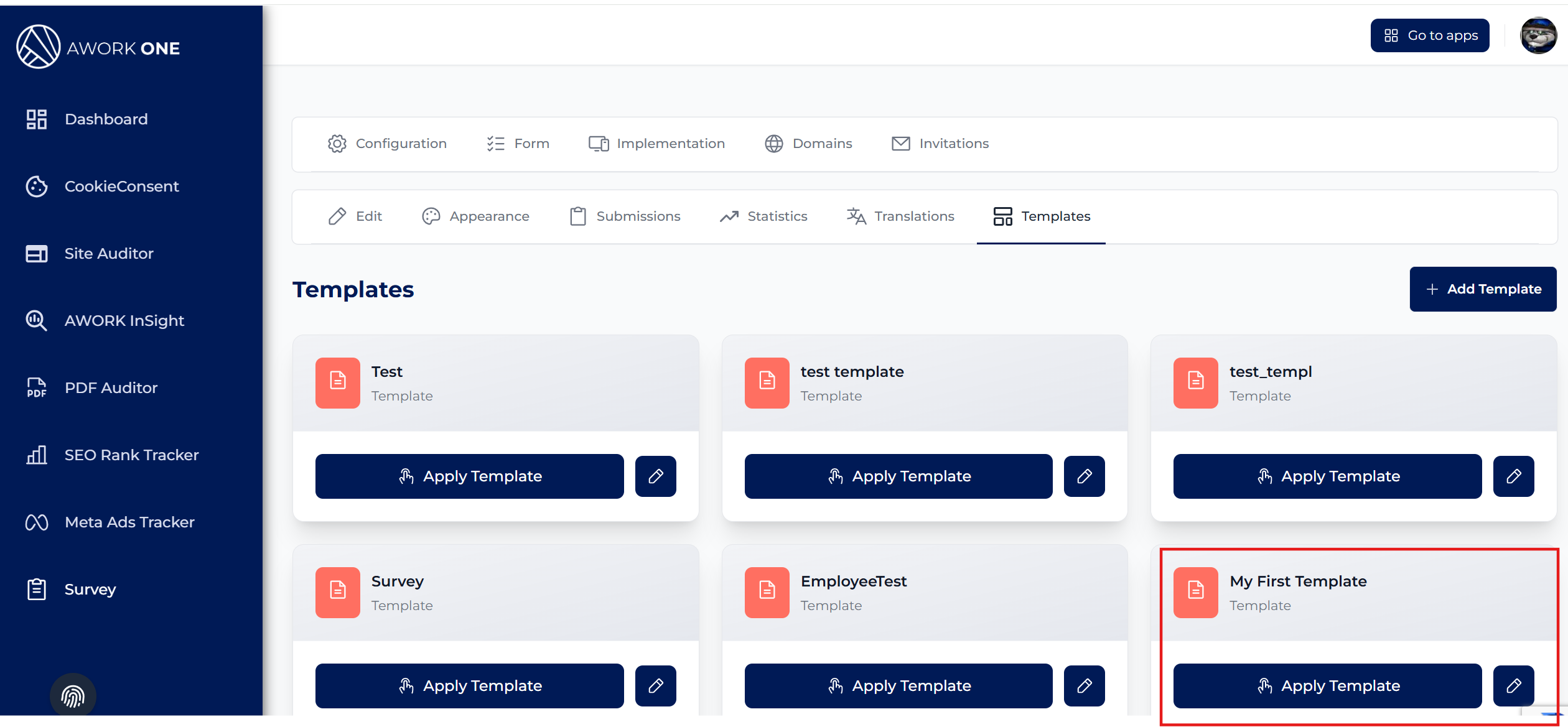
Step 10: Click the pencil icon to modify the existing template or click add template if you want to create a new one.
Related Articles
How to Create and Edit a Survey Form
A. Create a Survey Form (First Time) Step 1: Open the Survey app from the sidebar. Step 2: Select the survey configuration you want to work on. Step 3: Click the Form tab. If no form exists yet, you will be prompted to create one. Step 4: Add your ...How to Create and Manage Survey Invitations
A. Access the Invitations Page Step 1: Open the Survey app from the left menu. Step 2: Select the survey configuration you want to share. Step 3: Click the Invitations tab. You will see a list of existing invitations, if any. B. Create a New ...How to View and Review Survey Submissions
A. Access Survey Submissions Step 1: Open the Survey app from the sidebar. Step 2: Select the survey configuration you want to review. Step 3: Go to the Form tab. Step 4: Click Submissions. You will now see a table with all collected survey ...How to View and Analyze Survey Statistics
A. Open the Statistics View Step 1: Open the Survey app from the sidebar. Step 2: Select the survey configuration you want to analyze. Step 3: Go to the Form tab. Step 4: Click Statistics. B. Select a Date Range Step 1: Choose a date range using the ...How to Customize the Survey Appearance and Styling
A. Access Appearance Settings Step 1: Open the Survey app from the left sidebar. Step 2: Select a survey configuration. Step 3: Go to the Form tab. Step 4: Click Appearance. You can now customize how your survey looks and feels. B. Customize Layout ...